Understanding Reading Steps and Views
When creating a sequence protocol, you define its reading steps and views. A reading step specifies the layout of images across all monitors of your workstation. A reading step specifies one or more views. Each view occupies one viewport.
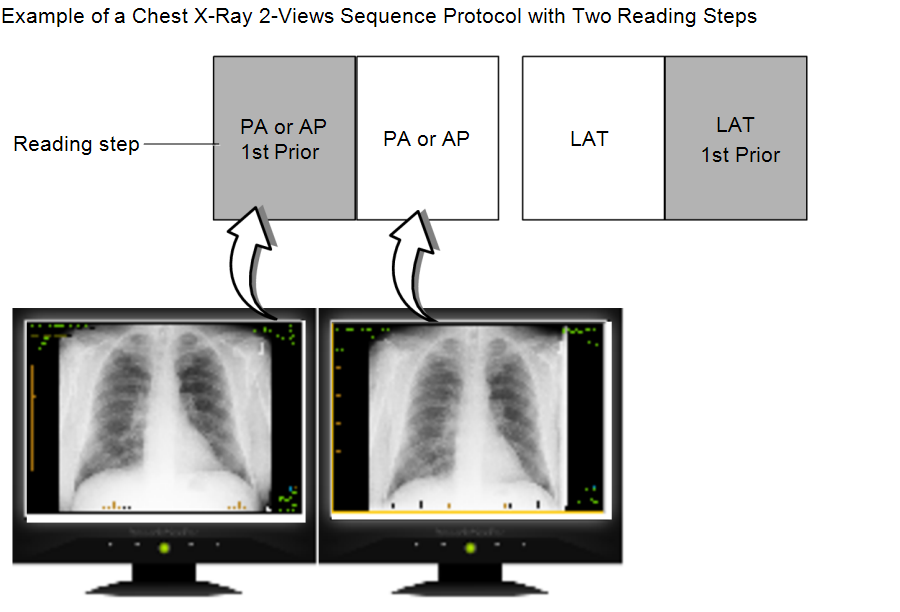
In the example below, reading step 1 includes two views and reading step 2 includes three views.
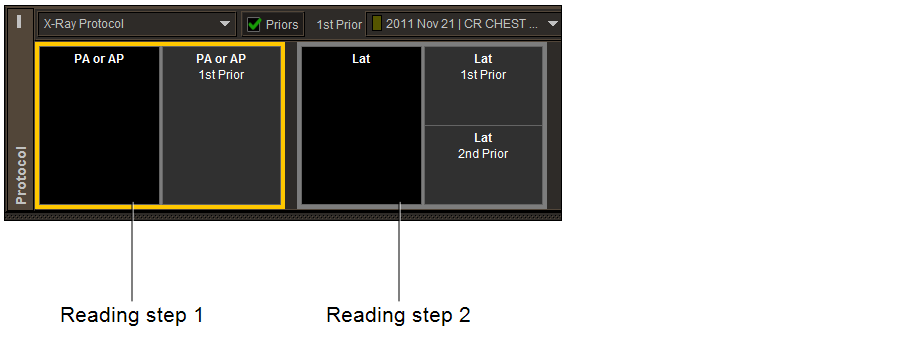
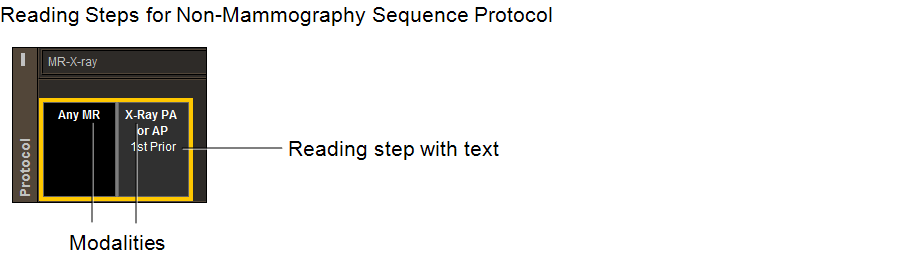
Reading steps for non-mammography images display the view rules in text format.
Reading steps for mammography images show pictographs. The quadrant symbol  indicates
that the mammography image displays in four proportional sections. The CAD marks symbol
indicates
that the mammography image displays in four proportional sections. The CAD marks symbol  indicates
that the mammography image displays with CAD marks and a summary
of findings.
indicates
that the mammography image displays with CAD marks and a summary
of findings.
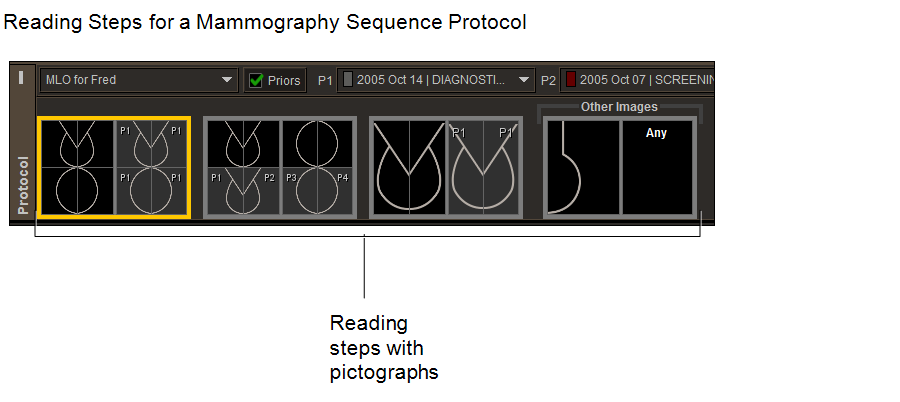
To prevent you from having to create multiple similar reading steps for mammography and tomosynthesis sequence protocols that contain 2D images, InteleViewer considers 2D and generated 2D views as interchangeable. When a sequence protocol specifies one or the other and no matching image is found, InteleViewer displays the other if available. InteleViewer matches GE V-Preview 2D images to generated 2D views in sequence protocols. If a sequence protocol is configured for a regular 2D view, and no matching 2D image is found, InteleViewer matches a V-Preview 2D image to the regular 2D view.
InteleViewer skips a reading step when no matching series is found. Skipped reading steps do not appear in the Protocol Preview pane. If the sequence protocol contains a reading step with a view for which no matching series is found, InteleViewer will either fill the unmatched viewport with the first non-displayed series for the corresponding study, or leave the viewport empty, depending on the Fill Unmatched Viewports with Non-Displayed Series modality preference.
If the current study includes series that do not match any of the sequence protocol views, InteleViewer automatically includes an Other Images reading step. The Other Images reading step contains images with views not included in the sequence protocol reading steps. For example, if oblique images are included in an X-ray study but the current sequence protocol does not have reading steps that specify these views, InteleViewer displays oblique views as part of the Other Images reading step.
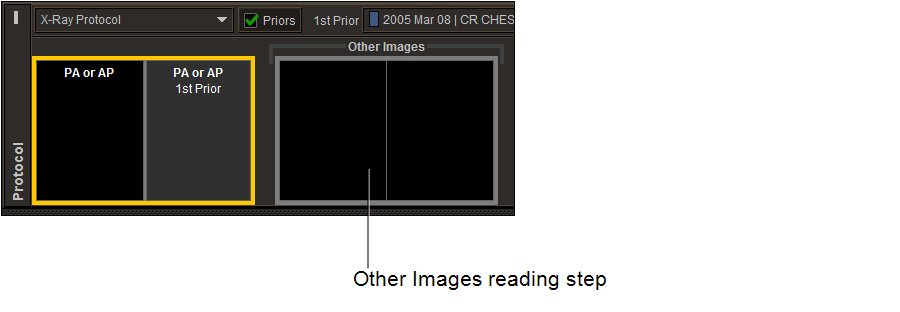
The series layout in the Other Images reading step is based on the series layout defined in the default modality preferences or the customized settings for a particular modality. For example, a 2 x 3 series layout in the Other Images reading step will display a total of six series across all monitors, organized in two rows and three columns.
In a multiple-monitor configuration, you can have different series layouts on each individual screen. For example, if you use a dual-monitor configuration, you can create a Chest X-ray 2 Views sequence protocol that instructs InteleViewer to lay out X-ray images on two portrait monitors as follows:
- The first reading step instructs InteleViewer to lay out the posterior-anterior view of the most recent prior X-ray study in the left monitor, and the posterior-anterior view of the current X-ray study in the right monitor.
- The second reading step instructs InteleViewer to lay out the lateral view of the current X-ray study in the left monitor, and the lateral view of the most recent prior X-ray study in the right monitor.