Updating the Worklist
As you are working, the worklist automatically updates
during regular intervals to display new orders and remove those
that have been reported from the list. The worklist also tracks
information on which orders are locked by another user. Locked orders are
not available for you to report, either because they have been opened
by another user or because they have been reserved. Locked orders
are represented by a lock icon  .
.
You can show or hide these orders as necessary, by enabling or disabling the Show Locked Orders check box in the Filter section.
Depending on your user restrictions, orders that are locked or reserved by other users might not appear in your worklist. To avoid seeing orders locked or reserved by other users, your user account must be assigned the Hide Orders Locked and Reserved by Others restriction. Although these orders no longer appear in the worklist, they do appear in searches you perform for studies with an order that is reserved or locked by another user. When this restriction is enabled, the Show Locked Orders check box is not available. For more information, contact your PACS administrator.
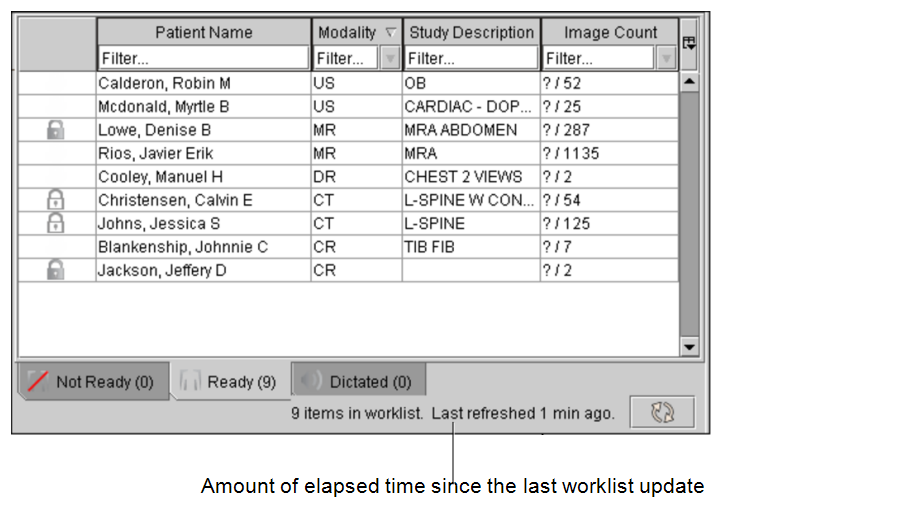
The exact interval of time between automatic updates depends on your IntelePACS configuration. The default is every five minutes; however, you can choose to manually update the worklist when you need to make sure you are working with the most current orders. The amount of time that has elapsed since the last worklist update appears in the status.
To update the worklist:
-
Do one of the following:
- Click the Worklist tab and then press F5.
- Click Refresh
 .
.