Customizing the Column Layout
You can resize, hide, display, and customize the position of all columns in the worklist or the To Sign panel. Any changes you make to the layout are saved automatically.
To resize columns:
-
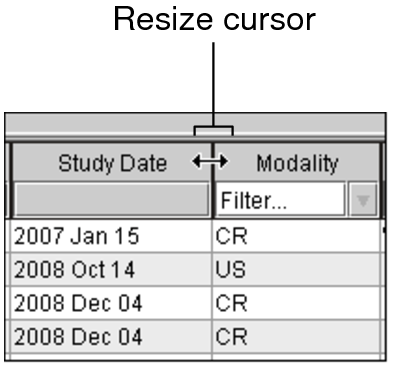
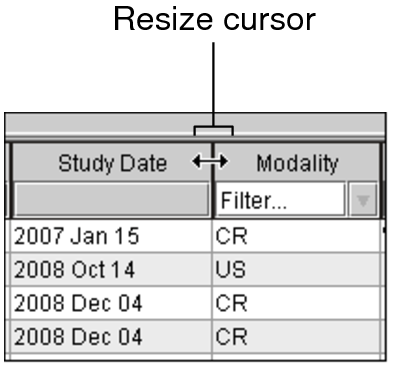
Place your cursor over the column heading, near the divider between columns.
The cursor changes to indicate you can resize it.
-
To resize the column, do one of the following:
Do this:
To:
Drag Left
Reduce the column width.
Drag Right
Increase the column width.
Double-click
Automatically adjust the column width to match the widest element.
-
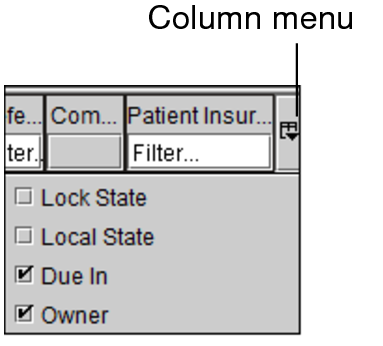
To automatically adjust the width of columns to match the widest element, click the Column menu and choose Pack All Columns or Pack Selected Column.

To change column position:
-
Click the heading of the column whose position you want to change and drag it to the new position.
-
When you reach the required column position, release the mouse button.
The column is moved to the selected location.
To display a horizontal scroll bar:
-
Click the Column menu or right-click anywhere in the column heading.
The horizontal scroll bar appears at the bottom of the worklist.