Creating and Viewing Impressions in the Report Viewer
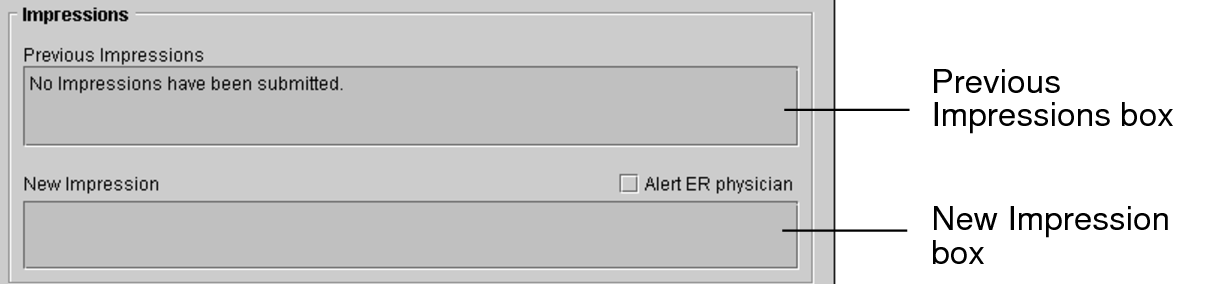
You can create impressions in the Report Viewer. If any impressions have already been entered, they appear in the Previous Impressions box.
To use this feature, ask your PACS administrator to enable the Add Impressions privilege in your user account.
The icon on the Impressions tab indicates if there is any information available.

To create an impression:
- Open the Report Viewer. See Accessing the Report Viewer.
-
Do one of the following:
- Choose Tools | Add Impression.
- Click Add Impression.
You may be restricted from creating impressions for locked or dictated orders. For information, contact your PACS administrator.
The Create New Impression dialog appears.
- Enter your impression in the New Impression box.
- To alert the ER physician about the new impression, enable Alert ER Physician.
-
If required, enter the numbers where you can be reached in the Telephone and Pager fields.
By default, the numbers associated with your IntelePACS user account appear.
-
Click Submit or press Ctrl+Enter.
The impression is saved. Once saved, the impression cannot be modified.
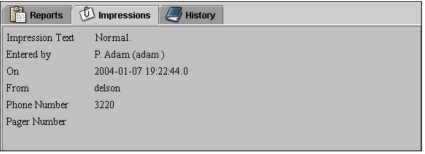

To view impressions:
- Open the Report Viewer. See Accessing the Report Viewer.
- Click the Impressions tab.
- To view the impressions for another study requisitioned for that patient, select the corresponding order in the List of Orders, and then select the Impressions tab.