Signing Reports
Reports are used to communicate details concerning a patient’s study to the patient’s referring physician. Signing a report is an important task for radiologists as the signed final report contains the findings, impressions, and a diagnosis associated with the study.
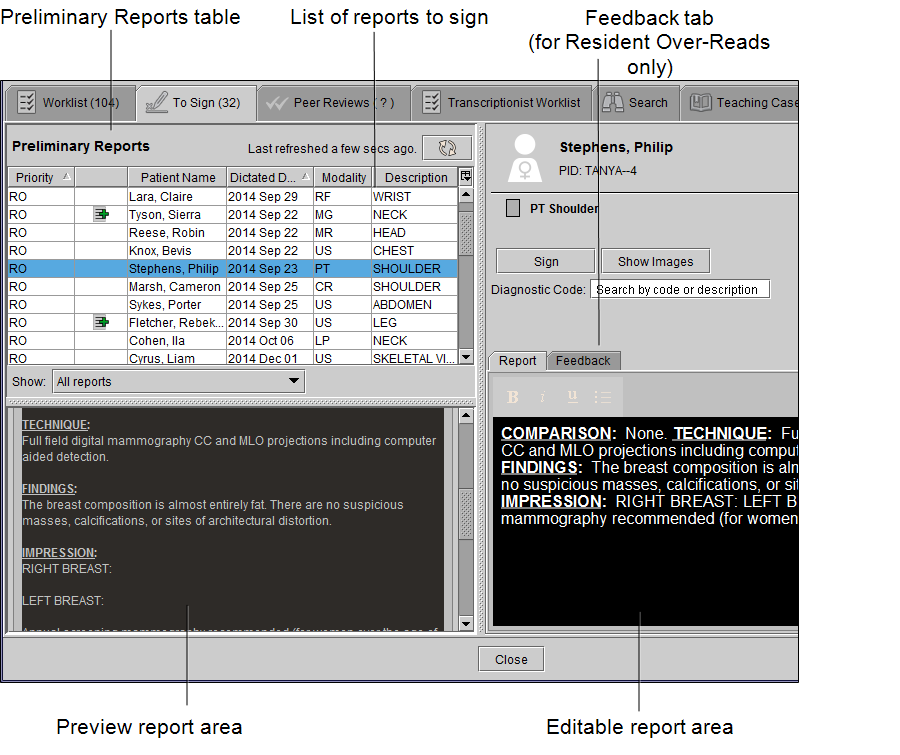
Use the To Sign tab to review, correct, and sign preliminary reports, to view images associated with the report, and to add diagnostic codes. The To Sign tab features a worklist and a text area. Each report can contain impressions and critical results. A red icon appears on the To Sign tab to indicate the existence of at least one STAT report awaiting your signature. The number in the tab indicates the total number of reports awaiting your signature. The list of reports is automatically refreshed after 90 seconds; however, you can refresh the list when necessary by clicking the Refresh button.
The Preliminary Reports table in the Signing worklist displays the status of each preliminary report in the Signing worklist.
If the report was dictated using Multi-Method Reporting (MMR), and you have the Resident Over-Reads module, you can also provide feedback on the report. If you are an attending radiologist, you can provide feedback to your resident and fellow radiologists. If you are a fellow radiologist, you can provide feedback to your resident radiologist.
You can also proxy sign a report if the dictating radiologist is unavailable.
The Signing worklist preserves the sorting order of the last three columns you selected, so you can apply three levels of sorting at a given time. For example, you can click the Priority column first, then click the Patient Name column, and finally click the Patient ID column. By default, the worklist displays information in ascending order starting with the Priority column.
In addition to reports that originate from your facility’s IntelePACS, you can edit and sign reports delivered from outside IntelePACS via HL7 devices.
If you use linked orders in your workflow, InteleViewer creates a single report for all the linked orders, as opposed to one report for each order.
To use this feature, ask your PACS administrator to assign the Radiologist role, enable the Dictate Report privilege, and assign a RIS ID in your user account.
To sign a report:
- In the Signing worklist, select the report that you want to sign.
-
If you need to edit the report before signing it, in the Report Text area, type new information or correct the current information.
If you notice errors in the report, you may ask the transcriptionist who transcribed it to make corrections. When the transcriptionist opens the report for editing, it disappears from your Signing worklist. When the transcriptionist is finished with the edits, and sends the report for signature again, it will reappear in your Signing worklist.
The name of the transcriptionist who transcribed the report, not the transcriptionist who edited it, is displayed in the preliminary report.
-
If you want to review the images, click Show Images.
The images open in InteleViewer.
-
To add a diagnostic code to the report, do one of the following:
- Type a minimum of three characters (letters or numbers) corresponding to the diagnostic code and then select the diagnostic code that appears.
- Type a minimum of three characters (letters or numbers) that appear anywhere within the diagnostic code description and then select the diagnostic code that appears.
- Type a single keyword or multiple keywords. For example, type "liver" or "liver disease".
You can associate multiple diagnostic codes to your report by repeating this process. To remove a diagnostic code, click the X next to the diagnostic code.
Diagnostic codes are for billing purposes and do not appear in the final report.
-
In the report, click Sign.
The report is removed from your worklist. The next report is selected in the list.