Dictating Reports
You can create digital audio files of your reports and play them to review the recording. To do so, either use the dictation controls in the Reporting Worklist Module or those on the digital voice recorder, depending on your preferred work method.
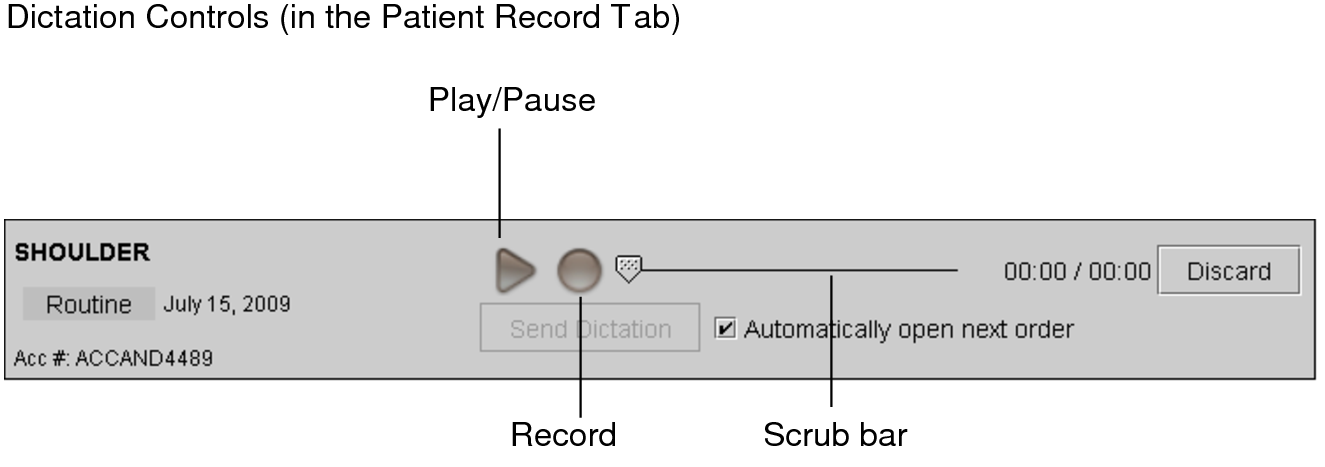
Once your dictation is complete, you can upload the digital audio file to the IntelePACS for transcription.
To use the Dictation Module, your system must also be configured with a digital voice recorder. For information, contact your PACS administrator.
To dictate reports:
-
Do one of the following:
- In the Search tool, find and double-click the study. Or, you can right-click the study and select Read Selected Studies.
- In the Dictated tab on the Worklist tab, find and double-click the order.
The Patient Record tab appears.
-
Do one of the following:
- In the Patient Record tab, click the Record button. Click it again to pause.
- Press and hold the Record button on the digital voice recorder. Release the button to pause.
An audio file is created. The audio waveform reflects the length of the recording and the level bar indicates the volume.
-
To discard the recording, click Discard. Click Restore to revert to the state of the recording before you discarded it.
If you click the Play button before clicking the Restore button, you will not be able to restore the recording to the state prior to clicking the Discard button.
-
To use the Dictation controls to playback and review the audio recording, do the following:
To:
Then:
Playback audio
Click the Play button.
Advance or rewind the audio
Click and drag the scrub bar.
The scrub bar updates to reflect the current location in the audio file.
-
To use the Philips SpeechMike Pro digital voice recorder model controls to playback and review the audio recording, do the following:
To:
Press:
Move to the beginning of the recording.
EOL or INSTR
Move to the end of the recording.
INS/OVWR
Playback or pause playback of the recording.

Rewind the recording.

Fast forward the recording.

The controls on other Philips SpeechMike digital voice recorder models will differ from those described above.
-
To use the Olympus DirectREC digital voice recorder model controls to playback and review the audio recording, do the following:
To:
Press (DR-2000 Model):
Press (DR-2100/2300 Models):
Move to the beginning of the recording.
REW
REW
Move to the end of the recording.
FF
FF
Increase the priority of the order.
A
F1
Send the recording, and return to the worklist.
B
NEW
Send the recording, and open the next order.
NEW
F2
-
To continue a dictation, rewind or fast forward the audio until the scrub bar is at the required location.
You can continue recording at the end of the audio file, or from any point in the current recording.
You cannot insert audio. If you begin recording again from a point in the existing recording, you will record over any existing audio from that point forward.
-
When you have completed your dictation, click Send Dictation.
The audio file is sent to the IntelePACS, a dictation lock is created, and the order status is changed to “dictated.”
If you close the Patient Record tab before completing your dictation, a message appears. You can either save or discard your dictation before closing the tab.
-
To re-dictate the order, contact your PACS administrator to remove the existing dictation manually.
The dictation as well as any associated audio files and their transcriptions are deleted, and the order status is changed to "completed." Once the PACS administrator has removed the dictation, close and re-open the order to re-dictate it.
See Also