Listening to Audio Reports
 Watch the video
You can listen to audio reports in InteleViewer if you are using the Dictation Module, MMR with Dictation Module, or PowerScribe 360. You can listen to audio from only unsigned reports.
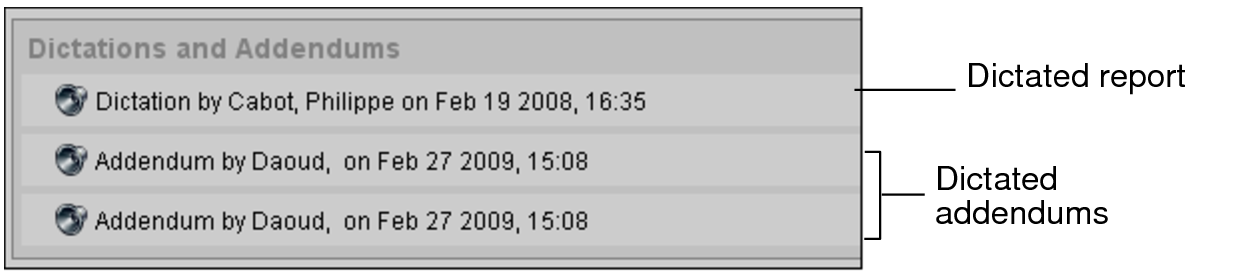
After the radiologist signs the report, you can listen to any addenda associated with the report if you are using the Dictation Module or MMR with Dictation Module. If you are using PowerScribe 360, you can access only the most recent addendum.
Listening to audio dictations done with PowerScribe 360 requires IntelePACS version 4.15.1 and later, InteleViewer version 4.15.1 and later, and PowerScribe 360 version 3.5 or later.
Once a report has been transcribed, you can view it in written form.
In addition to accessing audio reports in the Report Viewer, you can also play them back in InteleBrowser. For information, please refer to the InteleBrowser User Guide.
To listen to an audio report:
-
Do one of the following:
- In the Search tool, find and double-click the study. Or, you can right-click the study and select Read Selected Studies.
- In the Dictated tab on the Worklist tab, find and double-click the order.
An Audio icon appears
 in
the Patient History panel to indicate orders that have been dictated but
not transcribed.
in
the Patient History panel to indicate orders that have been dictated but
not transcribed.Audio dictations and addenda that are available appear in the Patient Record tab or the Dictated tab on the Worklist tab.
-
Select a dictation or addendum.
The playback controls appear and the audio begins to play.

- Pause or play the recording, as needed, or use the scrub bar to move through the recording.