Creating Addendum Reports
Report addenda allow you to add information to exams that already have been reported. They can be used, for example, to re-dictate a case or to add supplementary information to the report.
You can create an addendum for any order that has been dictated and is pending transcription or has a preliminary or signed report.
Addendum reports appear in the Transcription worklist automatically.
To dictate report addenda, your system must be configured with the Dictation Module and a digital voice recorder. For information, contact your PACS administrator.
You cannot dictate an addendum if you have No Dictation System selected as your current dictation system in User Preferences.
To create a report addendum:
-
From the worklist, click the Dictated tab.
A list of dictated orders appears.
-
Do one of the following:
- Double-click the order.
- Right-click the order and choose View.
- Select the order and then press Enter.
The Patient Record tab appears.
-
Click Start Addendum.
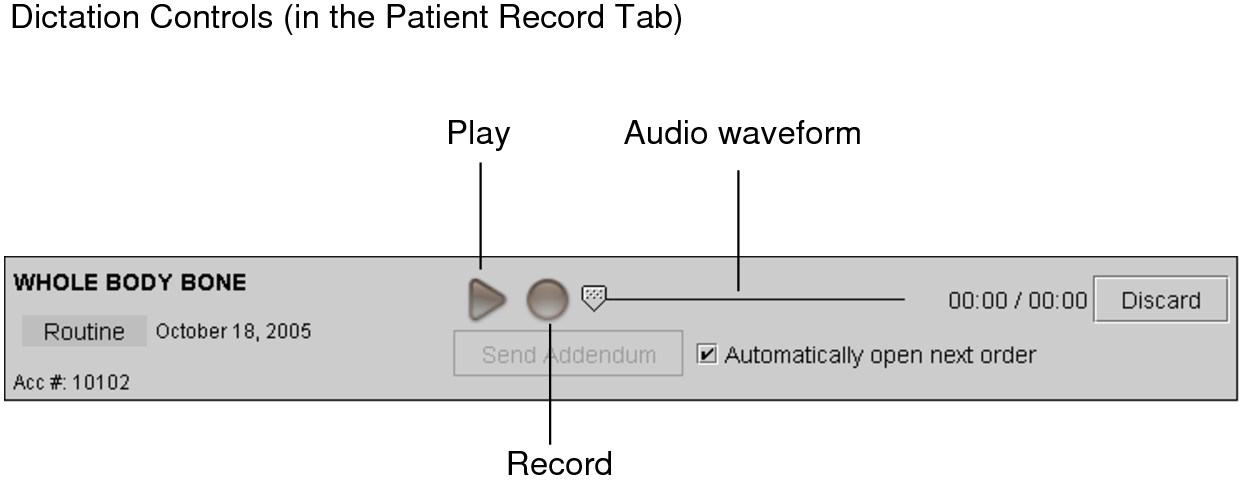
The dictation controls appear.
Adding report addenda does not lock the exam; it is still available to other users that would like to add an addendum.
- Use the dictation controls or the digital voice recorder controls to dictate the addendum. See About Dictating Reports.
-
When you have completed your dictation, click Send Addendum.
The audio file is sent to the IntelePACS. The report addendum appears in the Transcription worklist, and is indicated by a plus (+) sign. Once it has been transcribed, it is sent to the RIS and can be viewed as you would any other report.