Saving Presentation States
Save your image manipulations to the IntelePACS to create presentation states for a study. Depending on your needs and your user preferences, you can save your image manipulations manually or you can set InteleViewer to save your image manipulations as presentation states automatically when you close a study or when you close InteleViewer.
Once you save a presentation state, you cannot delete it.
There are certain conditions for saving a presentation state:
- InteleViewer only saves image manipulations for series that you have viewed.
- InteleViewer automatically saves a series only if you have modified it from its original state when last opened.
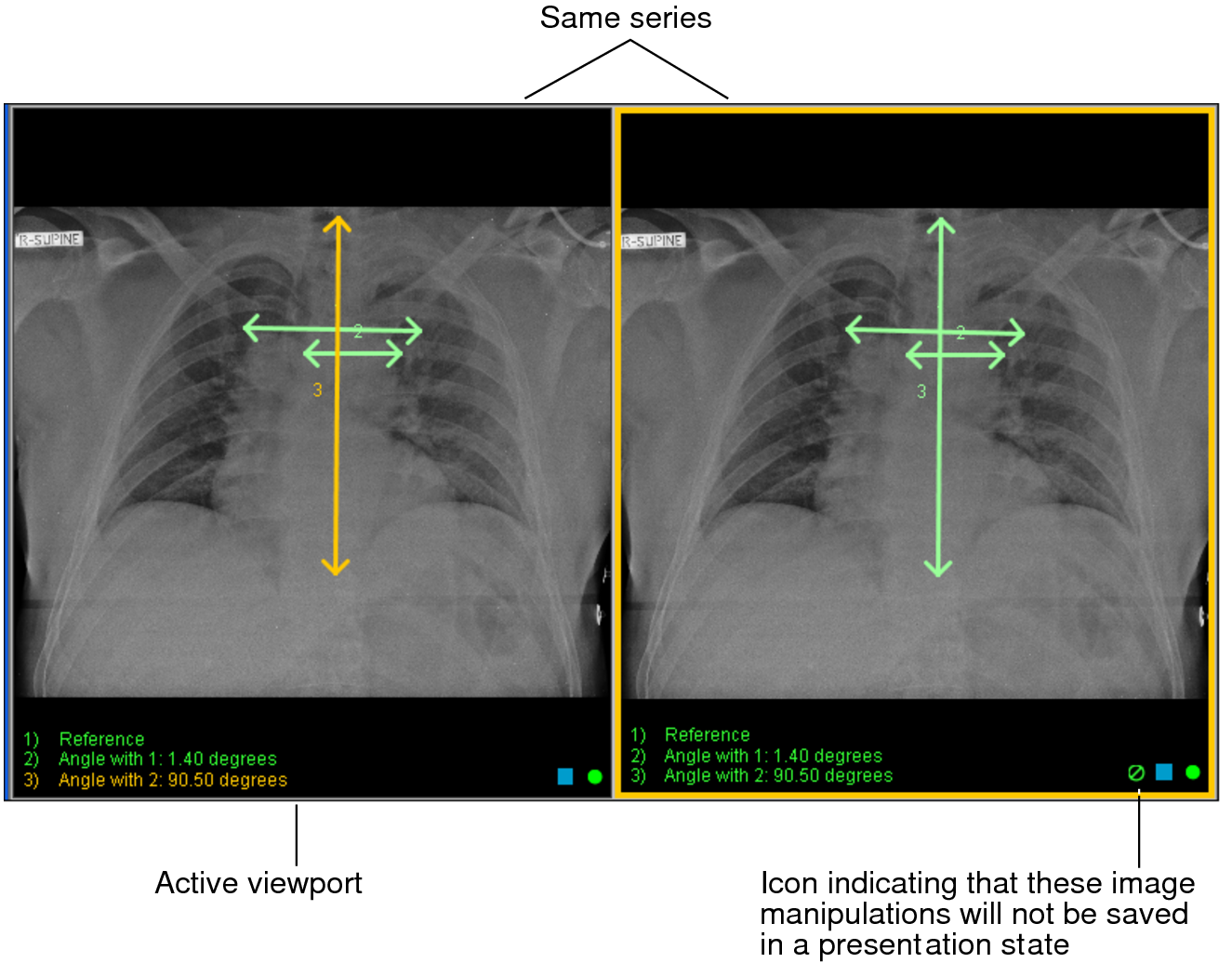
- Commands for presentation states are available when working in a regular InteleViewer window. Presentation states are not available when composing key images, composing teaching cases, working with multi-planar reconstruction (MPR) perspectives, or preparing images to print to film. If you are viewing the same series or image in more than one viewport, InteleViewer saves the image manipulations to the first viewport that you used or the first viewport in which you added measurements or annotations. An icon appears in the viewports to indicate which image manipulations will not be saved in a presentation state.
To save a presentation state:
- Select the required image by clicking its viewport.
- Adjust the image as required by using the image tools.
-
If you have auto-save enabled, close the study; otherwise do one of the following:
- From the main menu, choose File | Save Presentation State.
- From the toolbar, click the Save Presentation State tool
 .
.
InteleViewer saves the presentation state of the selected study that is open in the active viewport to the IntelePACS. The presentation state also appears as a menu item in the Presentation States menu. The name of a saved presentation state is the date and time that you created it followed by your name.
If you use grouped procedures in your workflow, when you save a presentation state the InteleViewer application saves a presentation state to the IntelePACS for each study in the order that you viewed. The names of the saved presentation states have the same date, time and user name.
If you use linked orders in your workflow and you have auto-save enabled, InteleViewer saves a presentation state to the IntelePACS for all the linked orders. The names of the saved presentation states have the same date, time, and user name. If you manually save your image manipulations, InteleViewer saves a presentation state to the IntelePACS for the selected viewport. If the selected viewport is part of a linked order, InteleViewer saves a presentation state to the IntelePACS for all the linked orders. If the selected viewport is a single linked order, InteleViewer saves a presentation state to the IntelePACS for only that linked order.
See Also