Measuring Freehand Areas
Use the Freehand Region of Interest (ROI) measurement tool to draw an outline around an area on an image. This tool measures area in square centimeters for a calibrated image or square pixels for an uncalibrated image. It also measures mean, standard deviation, median, and maximum for the selected area, and displays the values in the bottom left corner of the viewport.
- Area: represents the calculated area value in square centimeters.
- Mean: represents the calculated values of Hounsfield units for the area.
- SD (Standard Deviation): represents the variation from the average mean.
- Median: represents the middle value of all the pixel values (sorted from lowest to highest) for the area, or an average of the middle pair of numbers if there is an even number of pixel values, in Hounsfield units.
- Max: represents the maximum pixel intensity value in the area, in Hounsfield units.

To measure a freehand area:
- Click the Freehand ROI Measurement tool
 .
. -
Click and hold the left mouse button while dragging an outline of the area you want to select. Release the mouse button when you are finished.
Your selection closes between the start and end points. A numbered region appears, and the corresponding area, mean, standard deviation, median, and maximum appear in the bottom left corner of the viewport.
To change a freehand measurement:
-
Click the number associated with the freehand measurement to select it.
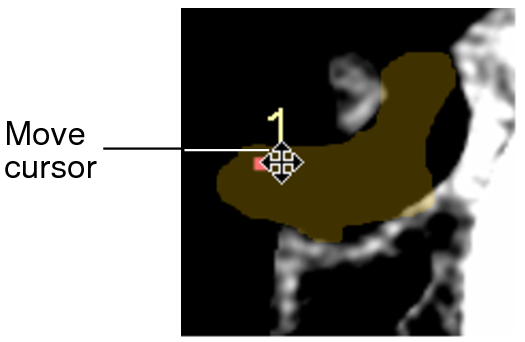
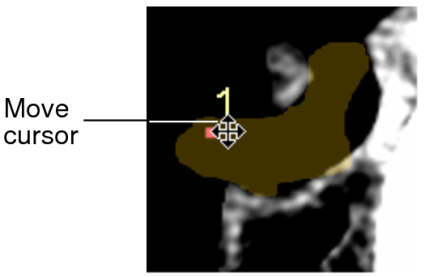
The region is highlighted and the move cursor appears.
-
To add to or subtract from your selection, select Add or Subtract, respectively, at the top of the active viewport.

- Click and drag an outline of the area you want to add or subtract. You can also click, start drawing, and click again to close the area.
-
To complete your selection, release the mouse button.
The measurement updates to reflect your changes.
-
To move the selection, move your mouse cursor to display the Move cursor. Drag the selection to a new location.
The area, mean, standard deviation, and median values of the freehand area are adjusted accordingly.