Zooming Images
Zoom a specific area of an image to increase its magnification. Use the mouse to zoom manually, or choose a preset zoom percentage.
Depending on the current mouse configuration, you can access the Zoom tool when certain other tools are selected.
To zoom an image:
-
Select the required images.
If linked mode is set in your modality preferences, you can zoom several images simultaneously. For more information see, Linking Viewports to Manipulate Images.
-
From the main menu, choose Tools | Zoom (Z) or click the Zoom tool
 .
.The cursor changes to indicate you are zooming.
-
Position your cursor over the area you would like to zoom. Click and drag in the required viewport.
The Zoom tool icon in the viewport disappears to allow you optimal viewing of the image The zoom is applied in the selected monitor only.
Drag:
To:
Up
Increase the area’s magnification (zoom in).
Down
Decrease the area’s magnification (zoom out).
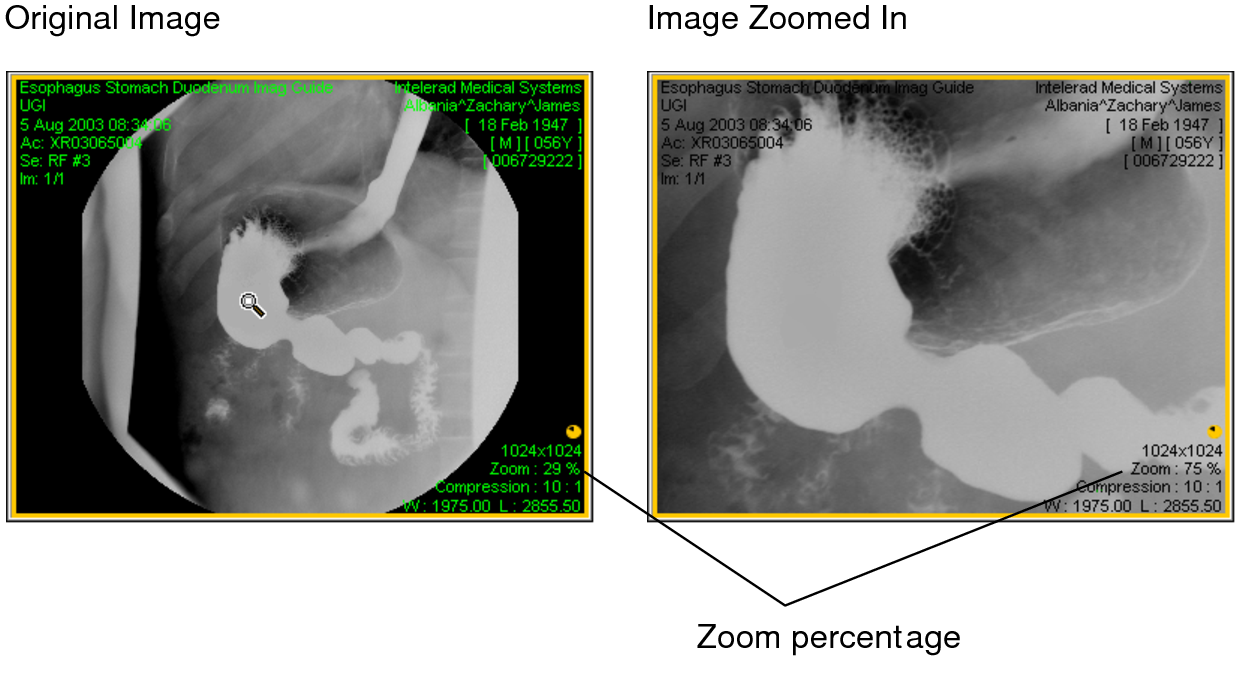
If you display the text overlay information, the zoom percentage increases and decreases as you drag.
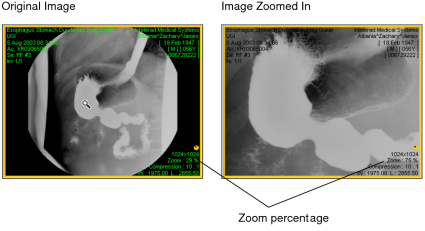
- To revert the image to its original magnification setting, choose Tools | Reset (Ctrl+Backspace).
To select a preset zoom percentage:
-
Select the required image.
Zoom settings are applied to all images in the series.
-
Choose a preset from the Zoom menu.
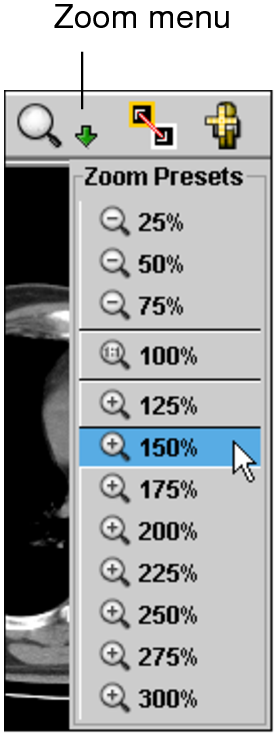
The zoom percentage increases or decreases to correspond to the selected option.
You can choose Tools | Reset (Ctrl+Backspace) to revert the image to its original magnification setting.
