Applying Profiles
You can apply profiles anytime to use preferences and tool defaults that are more appropriate to the workstation on which you are working. For example, you log in to a workstation with a grayscale monitor, and select a profile named “Grayscale Monitor” where the measurement tool color is white. You then log in to another workstation with a color monitor and notice that the measurement tool color is white. You can switch to your “Color Monitor” profile where the measurement tool color is red.
To apply a profile:
-
From the main menu, choose Utilities | Manage Profiles.
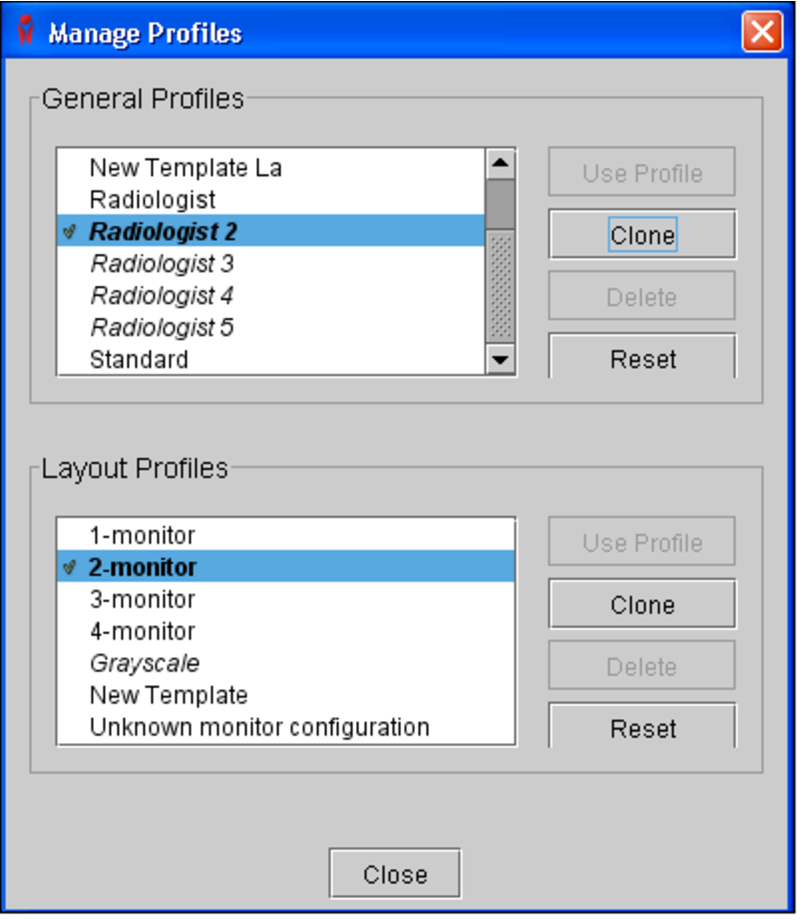
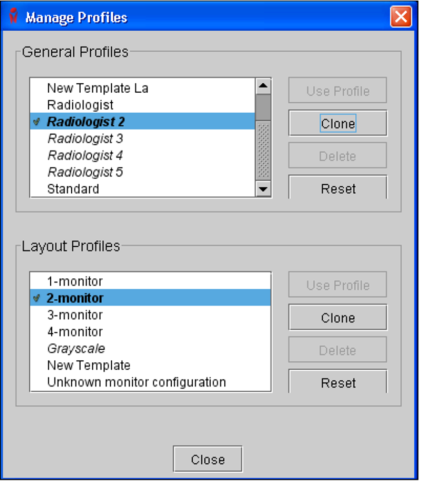
The Manage Profiles dialog appears.
-
Do one of the following:
- To choose a general profile, select it from the General Profiles list, and then click Use Profile.
- To choose a layout profile, select it from the Layout Profiles list, and then click Use Profile.
The profile settings are applied immediately and the profile name appears in bold preceded by a check mark to indicate that it is the current profile.
Certain profile settings may not be applied immediately (such as the search mode). To see their effect, you must restart InteleViewer.
-
Click Close.
The general profile and layout profile selected will be remembered the next time you start the application.